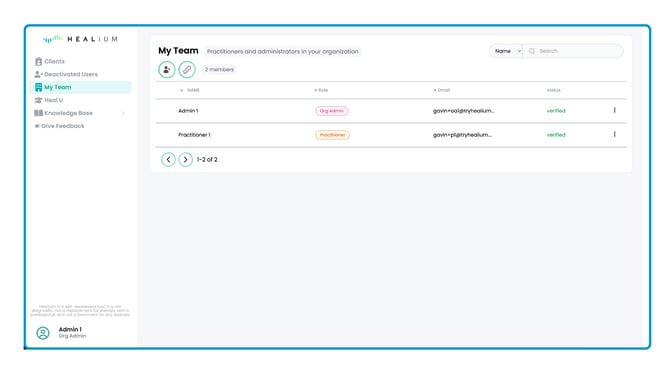
Click on the My Team tab in the Healium Dashboard
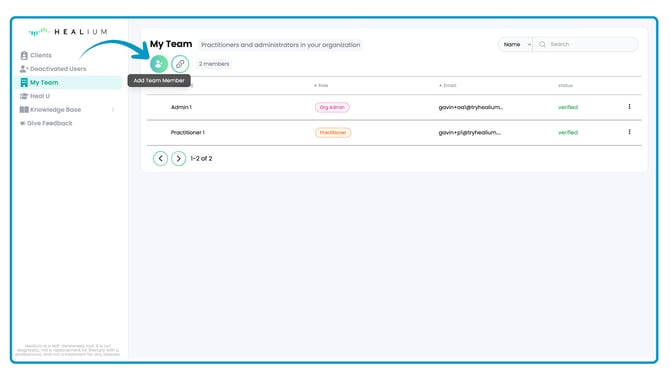
Click "Add Team Member"
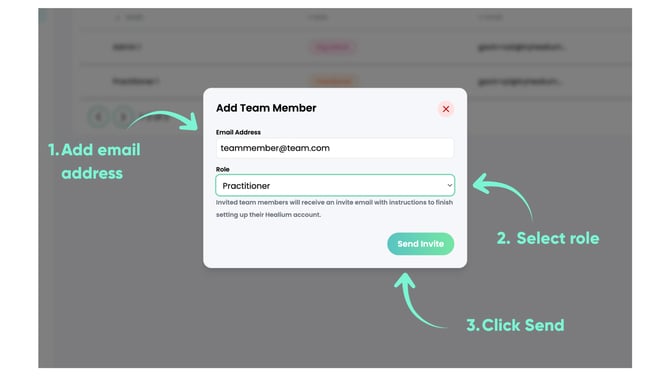
Fill out the popup form.
- Add their email address.
- Select their Role (Org Admin or Practitioner).
- Click Send.
Org Admins vs. Practitioners
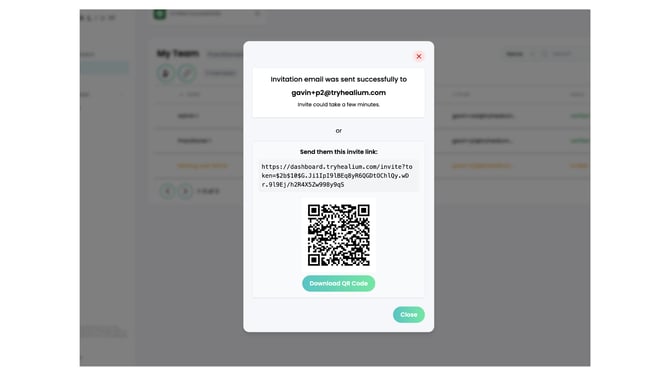
They will receive an invite email automatically. But you can also copy the link in the confirmation pop-up, and text it or message it to them directly.
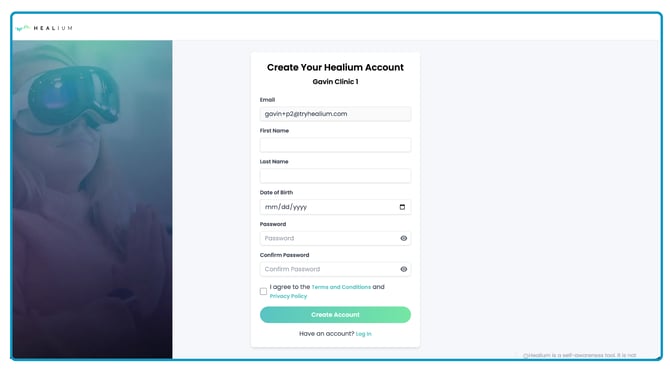
Clicking the link will open the form for them to finish creating their Healium account.
They will receive a welcome email that looks like this.
Click the "Setup Healium Account" button.

And then fill out the information in the Create Account form.
Click "Create Account"
That's all there is to adding new team members to your Healium dashboard!
Removing Team Members
1. Click the 3 dots on the far right of the user's row.
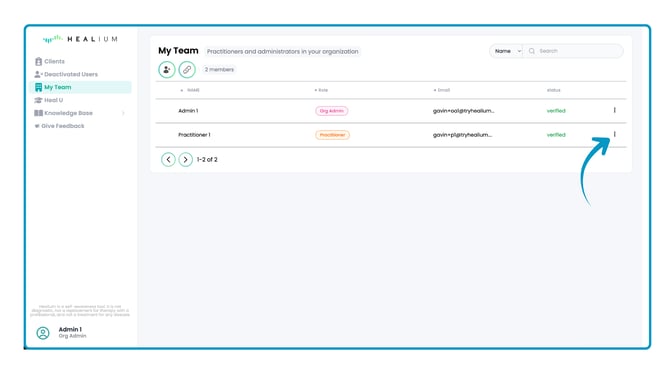
2. Click "Deactivate User"
You can also click "Edit User" if you need to edit their name in the dashboard.