To get started, click on the "Clients" tab in the Healium dashboard.
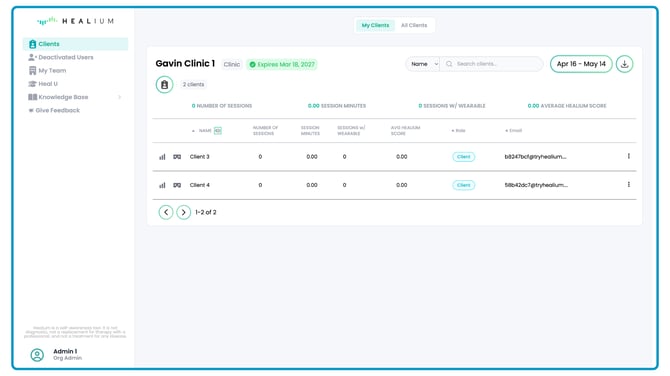
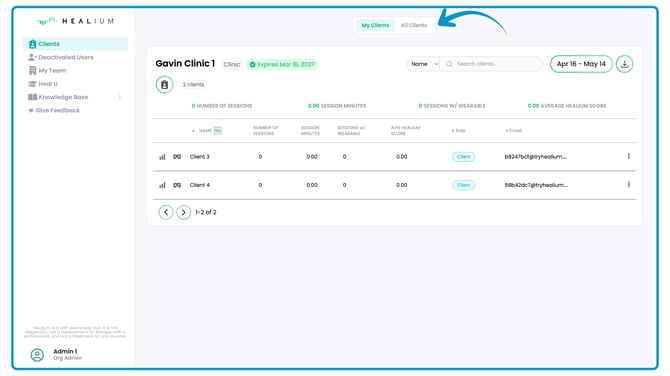
Org Admins have access to their own Clients, and also can click the "All Clients" tab to see all of the Clients for their organization.
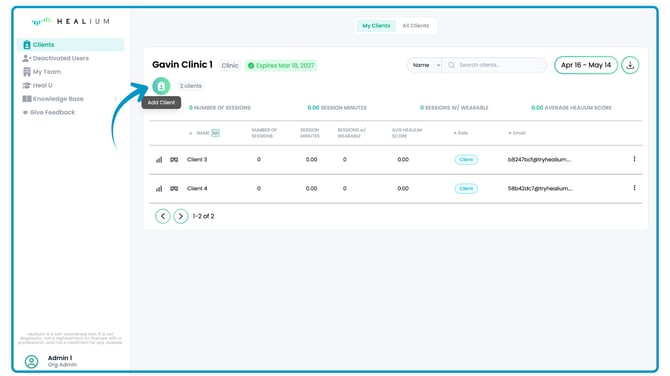
Click the "Add Client" button
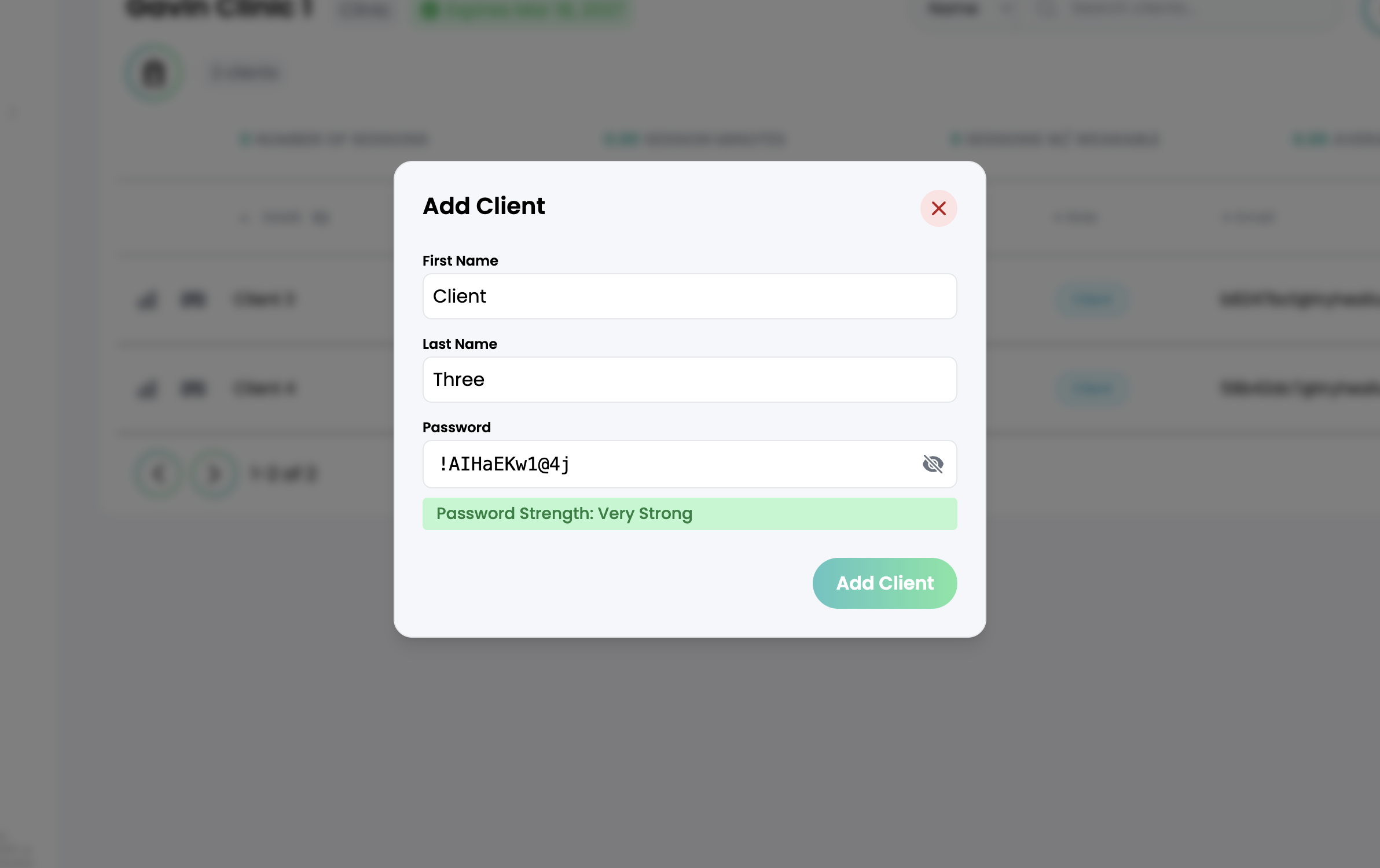
Fill in the Patient's first and last name.
A strong password will be created automatically, but you can change the password if you would like.
Click Add Client, and they will be added!
If you add a new client, you will automatically be assigned as their Clinician. Instructions for reassigning clients to other Clinicians are included below.
Healium has a code login feature that allows you to log your patients into the VR goggles without typing in their password. So you do not have to have their password memorized.
Editing and Deactivating Clients
Click the three dots on the far-right of the Client row.
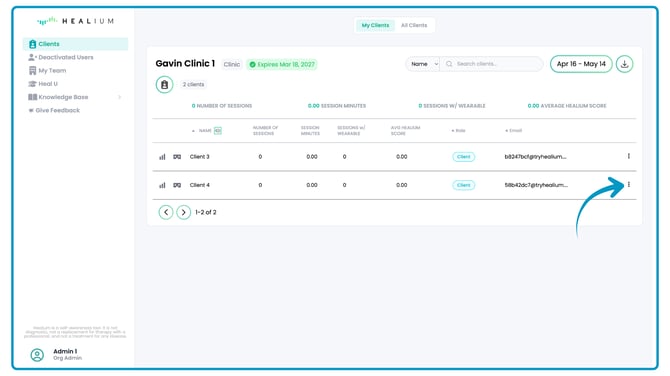
To deactivate a client, click "Deactivate User".
This will move their account to the "Deactivated Users" tab. You will no longer be able to do Healium sessions with that account.
To edit a client, click "Edit User".
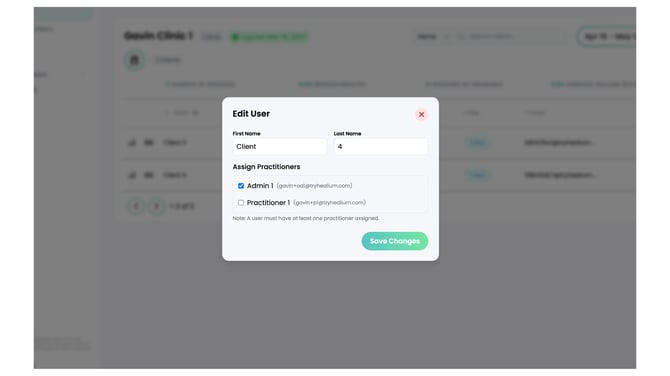
You can edit the Client's name.
And you can assign or reassign them to different Clinicians.