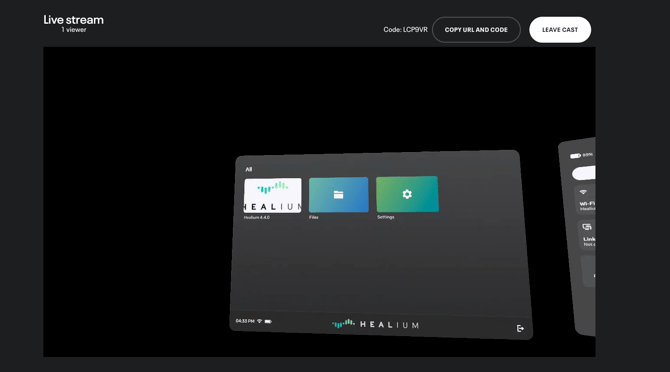
Open the Casting Screen on Your Computer
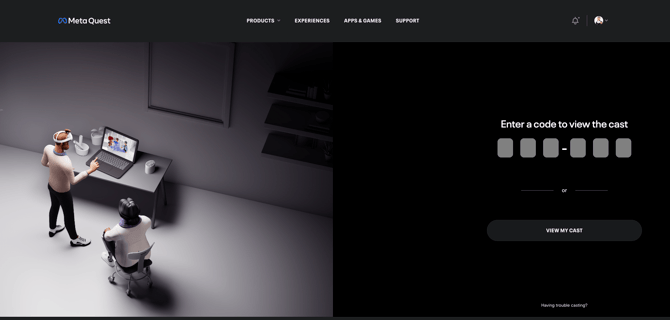
1. Go to https://www.oculus.com/casting/healium566 in your web browser on your computer.
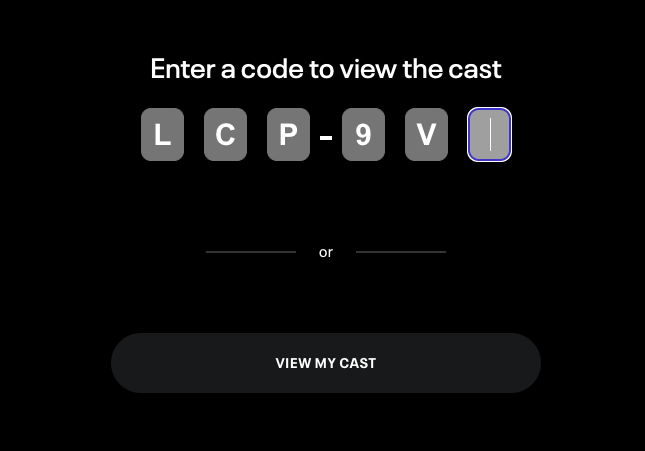
It will ask you for a 6 digit code.
That code will be found in your VR goggles.
Connecting Your Goggles to the Web Page
To find the 6 digit code in your VR goggles.
Put your Quest goggles on, and open the main lobby.
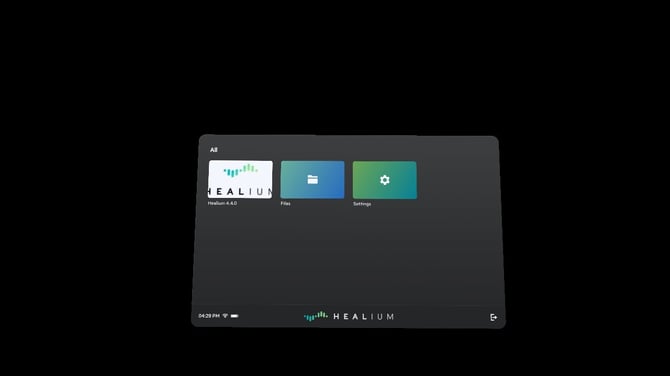
Click the Quick Settings in the bottom left corner.
The wifi and battery indicator.
It will open a side panel.
Click the Cast button

A popup will appear:
Click Web (oculus.com/casting)
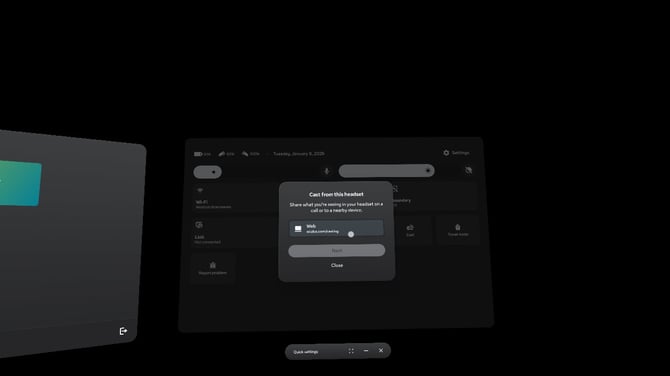
Click Next

A new popup called “Casting Instructions” will appear, and that popup will have the 6-digit code needed for the web page from the previous step.

Enter the 6-digit code from the Casting Instructions popup in the VR goggles into the Web Page you opened earlier.
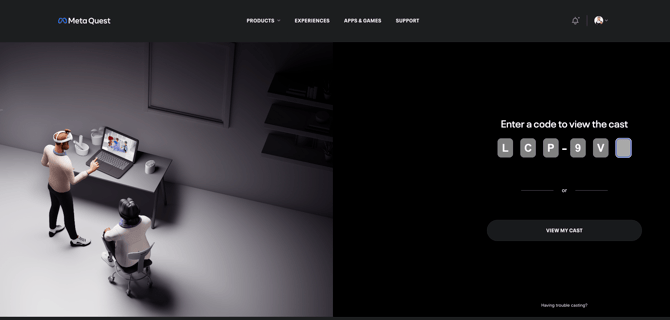
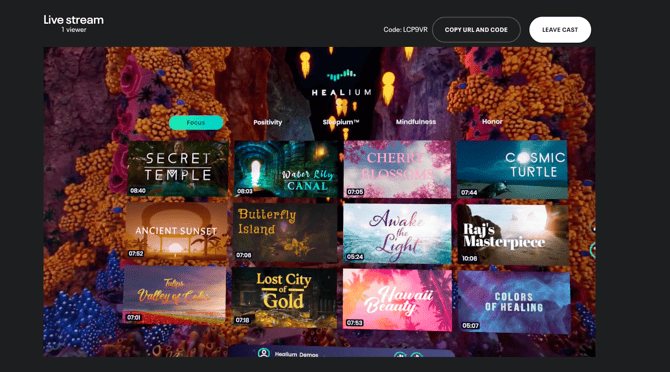
The casting will be started as soon as you enter the final digit. You will be able to see the VR goggles display in your web browser.
From there, you can guide the VR user to use Healium properly and select whichever experience you would like them to watch.
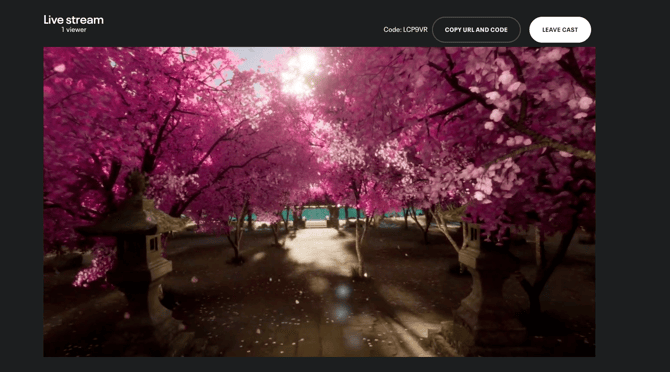
And you will be able to monitor their progress and see exactly what they see, including the Healium session.
To End Casting
You can end the casting either in the Quest Goggles or through the web page.
To End Casting in the Goggles
Click on the Cast button (it should be red if casting is still turned on)

Then click “Stop Casting” on the popup that appears.
To End Casting in the Webpage
Click the Leave Cast button in the top-right corner of the screen