Logging the patient into the VR goggles
To make logging your patients into the VR goggles easy, Healium has a code login feature built into the dashboard and VR app.
1. Click the goggle icon next to the patient you want to do a Healium session with.
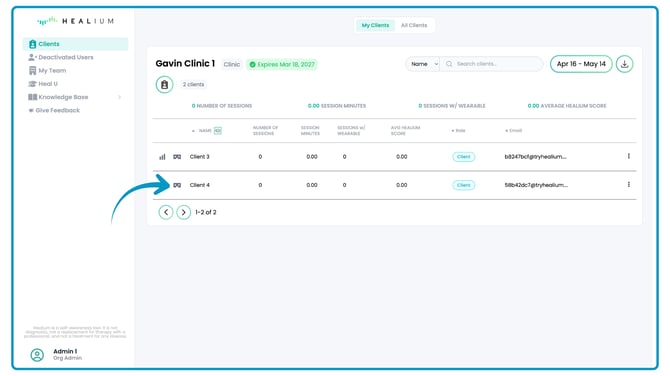
A popup will appear that asks for a 6-digit code.
You will find this 6-digit code in the VR goggles that you want to use!
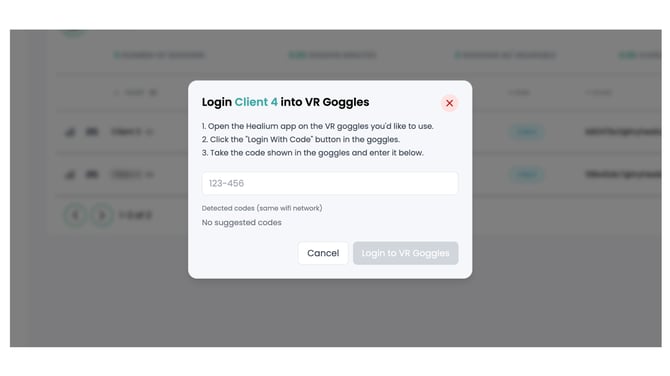
2. Open the Healium VR app, and make sure you are on the login screen. Click the "Login with Code" button.
A 6-digit code should appear within the VR goggles.
3. Take the 6-digit code from the goggles, and enter it into the Healium dashboard. Then click "Login to VR Goggles".
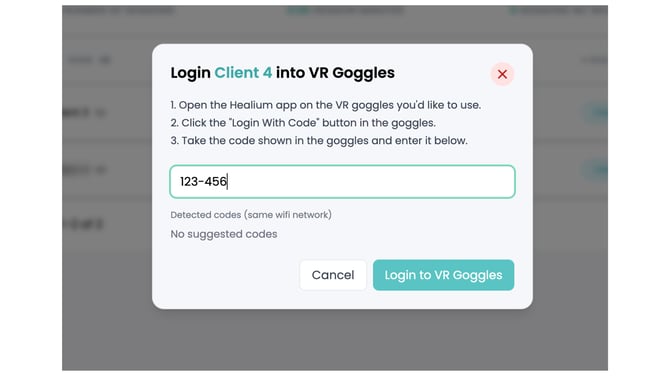
Now the patient will automatically be logged into the Healium VR app and ready to do a Healium session!
The Healium Lobby
From here, the patient will see the Healium Lobby. Next steps are to pair a compatible biofeedback wearable, and start the Healium session.
These steps are explained in the next knowledge base article!