To view a Patient's session history, click on the dashboard icon next to the patient you would like to view.
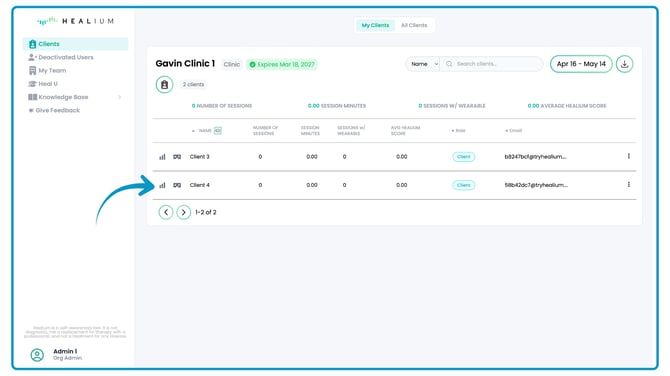
That will open the patient's dashboard with all of their session history, and aggregate data.
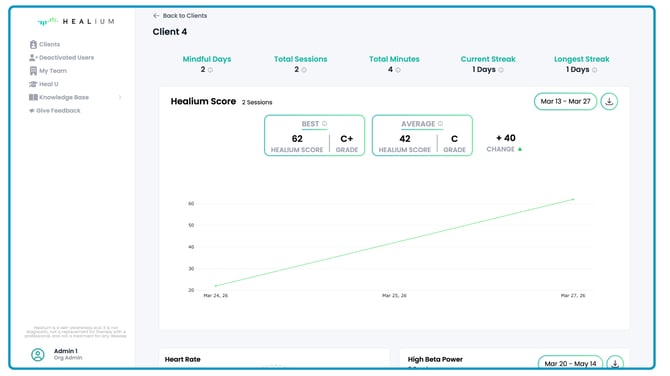
At The Very Top - User statistics bar
The statistics bar gives you a high level view of your Healium session statistics.

Mindful Days
This is the number of days they have done a Healium session.
Total Sessions
This is the total number of Healium sessions they have done.
Total Minutes
This is the total number of Healium session minutes they have done.
Current Streak
This is currently the number of consecutive days they have done a Healium session.
Longest Streak
This is the longest number of consecutive days they have done a Healium session.
Healium Score
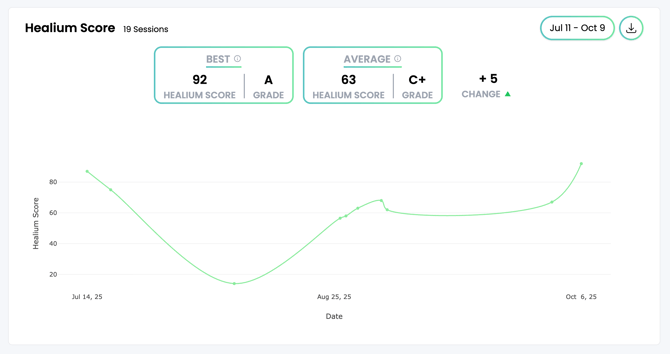
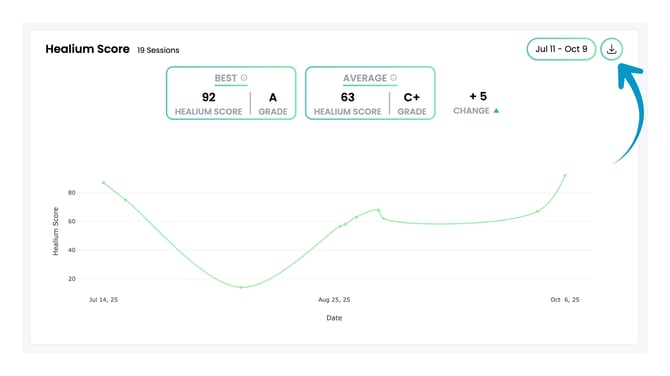
This section shows you the patient's Best and Average Healium Scores over the selected period of time. It also shows a line graph of how their Healium Score changed over that same period.
What is the Healium Score?
Users get a Healium Score at the end of each Healium session (as long as they were wearing a compatible biofeedback sensor during the session). The score is the percentage of time that they were more calm during the session than when they started. So, the max Healium score is 100. The Healium Score is based on either the user's heart rate or high beta brainwave (EEG) biodata during the session.
Changing the Date Range
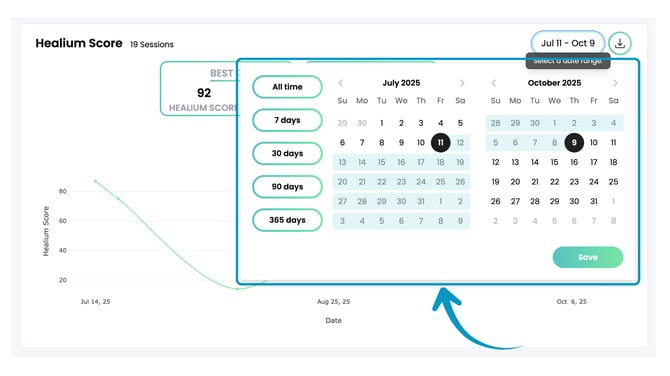
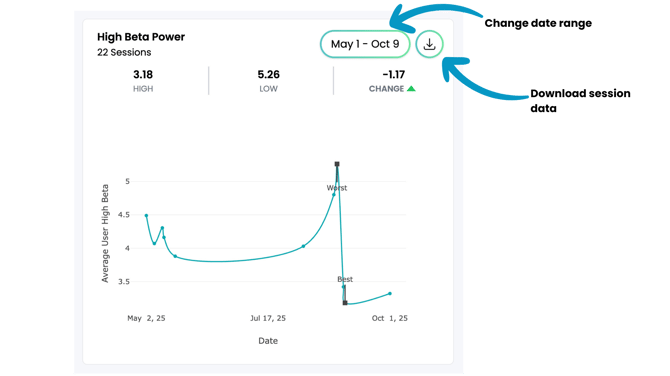
You can change the selected date range by clicking on the date-picker in the top-right corner of the Healium Score box.
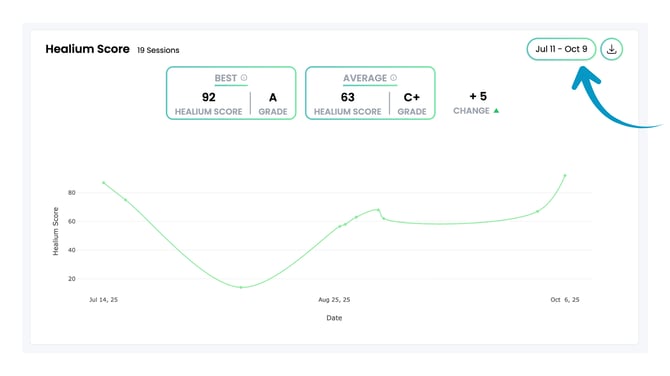
This will open the date-picker where you can select a custom date range, or choose from the provided presets: All time, or the past 7, 30, 90, or 365 days.
Downloading Session Data
You can also download the session data for the selected date range in a csv file.
Simply click the download button in the top-right corner of the Healium Score box.
Heart Rate
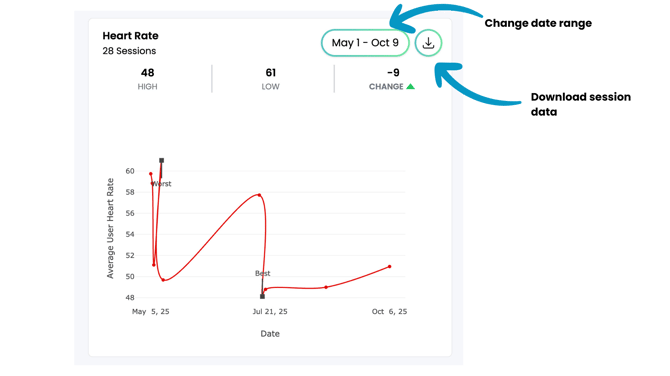
This section shows the average Heart Rate during Healium sessions.
Note: This shows the user's actual heart rate, and is different than the Healium Score.
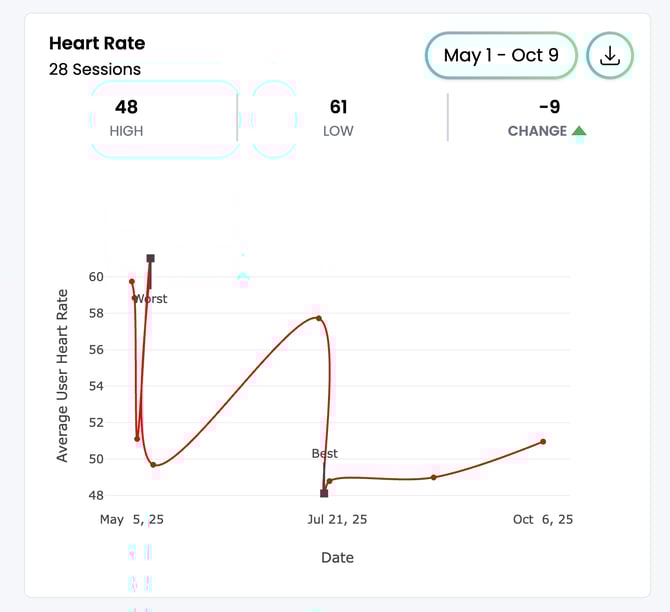
Tip: The lower the Heart Rate, the better.
You can change the selected date range and download the session data just like you can for the Healium Score box.
Note: This section only applies to sessions when the user was wearing a compatible smart watch, such as an Apple Watch, during the Healium session.

High Beta
This section shows the average High Beta brainwave amplitude during Healium sessions.
This shows the user's actual high beta amplitude, and is different than the Healium Score.
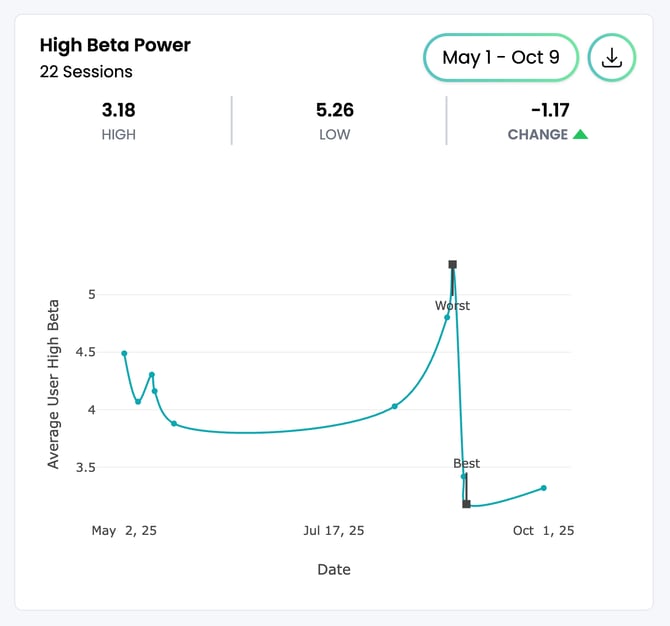
Tip: The lower the High Beta amplitude, the better.
You can change the selected date range and download the session data just like you can for the Healium Score box.
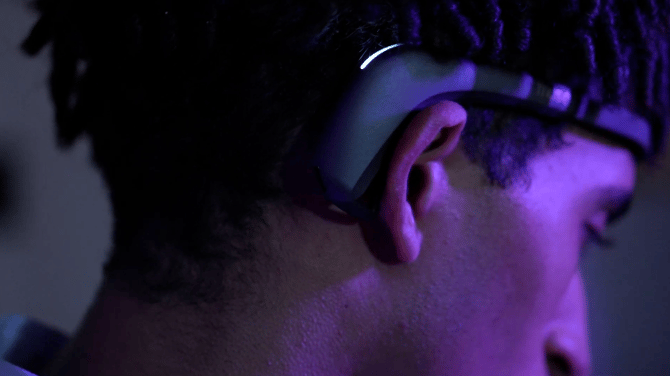
Note: This section only applies to sessions when the user was wearing a compatible EEG headband, such as a Muse 2, during the Healium session.
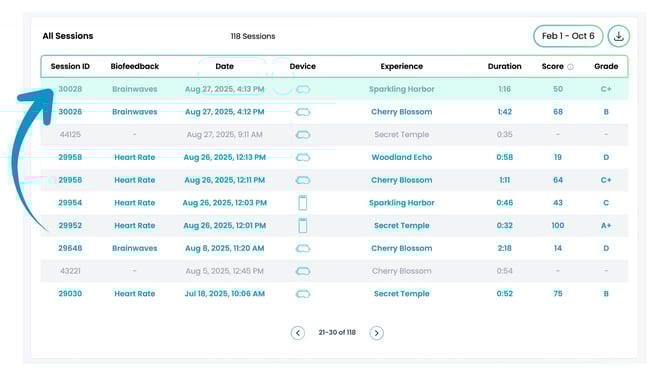
All Sessions
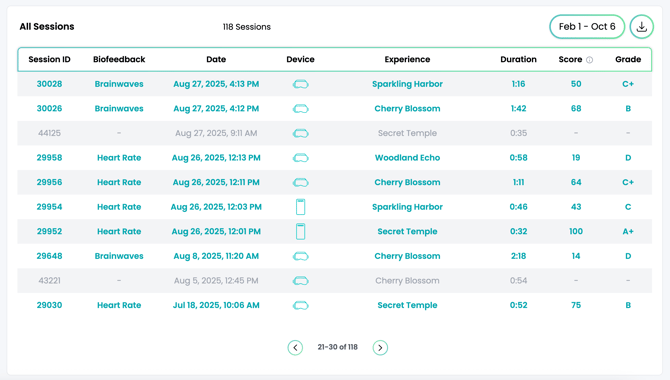
This section shows the session information from each Healium session, including:
- The Session ID.
- The type of biofeedback used (if any) during that particular session.
- The date of the session.
- The device type (VR or Mobile phone).
- The selected Experience for that session.
- The session's duration.
- The Healium Score for that session.
- The letter grade associated with that particular Healium Score.
Tip: As with all the other sections previously mentioned, you can change the date range and download the data from that selected date range into a csv file.
Seeing a session's brainwave data
Note: Applies to biofeedback sessions only.
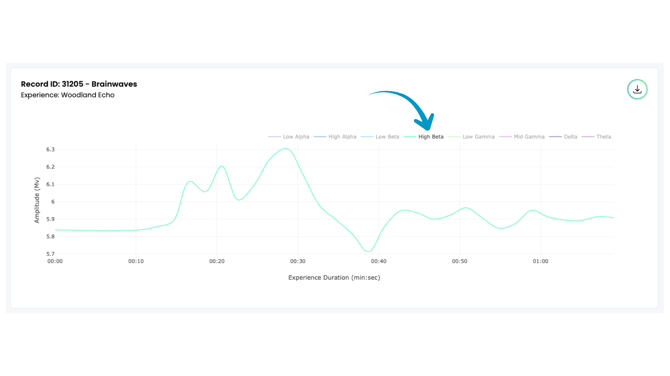
You can also select a session to see the full brainwave or heart rate data for that particular session.
Tip: You'll know if you can see a sessions brainwave or heart rate data if it has blue text.
Sessions with gray text do not have brainwave or heart rate data.
To see a particular session's brainwave or heart rate data, simply click on that session.
Tip: Scroll down and you will see the full brainwave data below.

If you want to see a closeup of a particular brainwave, simply double-click on that brainwave in the chart legend.
More dashboard features coming soon!